# Creating all Azure Resources

### **What is Azure Resource setup for Straatos Cloud Archive?**

The following resources are required and must be created in Azure environment. It is highly recommended to create all Azure Resources in the same Azure region (example: West Europe).

#### **How Does It Work?**

This article covers the following key components:

* [Azure Resource Group](#azure-resource-group)
  * Serves as a container to organize and manage all related Azure resources.

* [Azure Web App Service](#azure-web-app-service)
  * Hosts the Straatos Archive Connector for handling integration and processing.

* [Azure AI Search](#azure-ai-search)

  * Enables fast and secure indexing and retrieval of archived documents.

* [Azure Key Vault](#azure-key-vault)
  * Stores and manages sensitive credentials, secrets, and encryption keys.

* [Azure Storage Account](#azure-storage-account)
  * Provides durable, secure cloud storage for archived documents.

* [Azure SQL Database](#azure-sql-database)
  * Maintains metadata, configuration data, and indexing relationships for document retrieval.

***

### **Getting Started**

To deploy all required resources successfully, follow the steps outlined below.

{% hint style="info" %}
Names can only include alphanumeric, underscore, parentheses, hyphen, period (except at the end), and Unicode characters that match the allowed characters.
{% endhint %}

{% hint style="info" %}
Ensure that Microsoft is listed as the service provider for all Azure resources created.
{% endhint %}

***

### **Azure Resource Group**

#### **What is an Azure Resource Group?**

A logical container that holds related Azure resources such as virtual machines, databases, and web apps allowing them to be managed collectively. It simplifies resource organization, access control, and lifecycle management across deployments.

#### **Creating Azure Resource Group**

1. &#x20;In the Homepage of Microsoft Azure please select **Create a resource**.

<figure><img src="/files/oPBKYWxzyxPPbb4Ffus0" alt=""><figcaption></figcaption></figure>

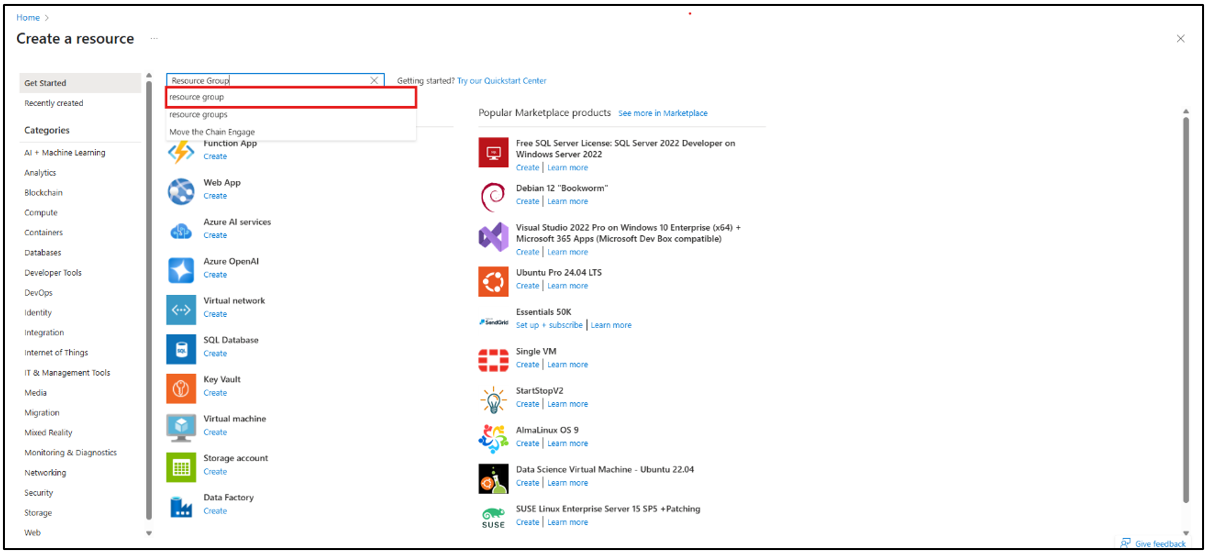
2. In the search bar type in **Resource Group** and choose the first option.

<figure><img src="/files/u1PaxHKoUU2iDidgwrzA" alt=""><figcaption></figcaption></figure>

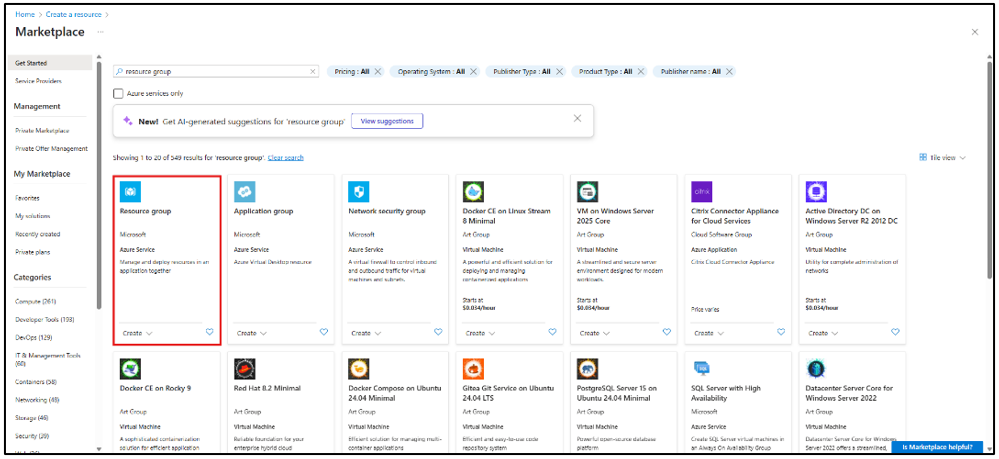
3. Select the first result from the list.

<figure><img src="/files/jno7DPTfCBNcwUfpDZAb" alt=""><figcaption></figcaption></figure>

4. Select **Create.**

<figure><img src="/files/zEn6Ro0GcZrntFu7JiG3" alt=""><figcaption></figcaption></figure>

5. Enter your preferred resource group name and click on **Review + Create**.

<figure><img src="/files/2ZgjXCtxesyTDAtHg7sR" alt=""><figcaption></figcaption></figure>

6. The resource group will be created.

***

### **Azure Web App Service**

#### What is an Azure Web App Service?

A fully managed platform as a service (PaaS) that enables you to build, host, and deploy web applications using frameworks such as .NET, Java, Node.js, and Python. It abstracts infrastructure management, handles scaling, and enforces security best practices allowing developers to focus on application development.

The Straatos ArchiveConnector runs within an Azure Web App Service, leveraging the platform’s scalability, security, and managed infrastructure.

#### Creating Azure Web App

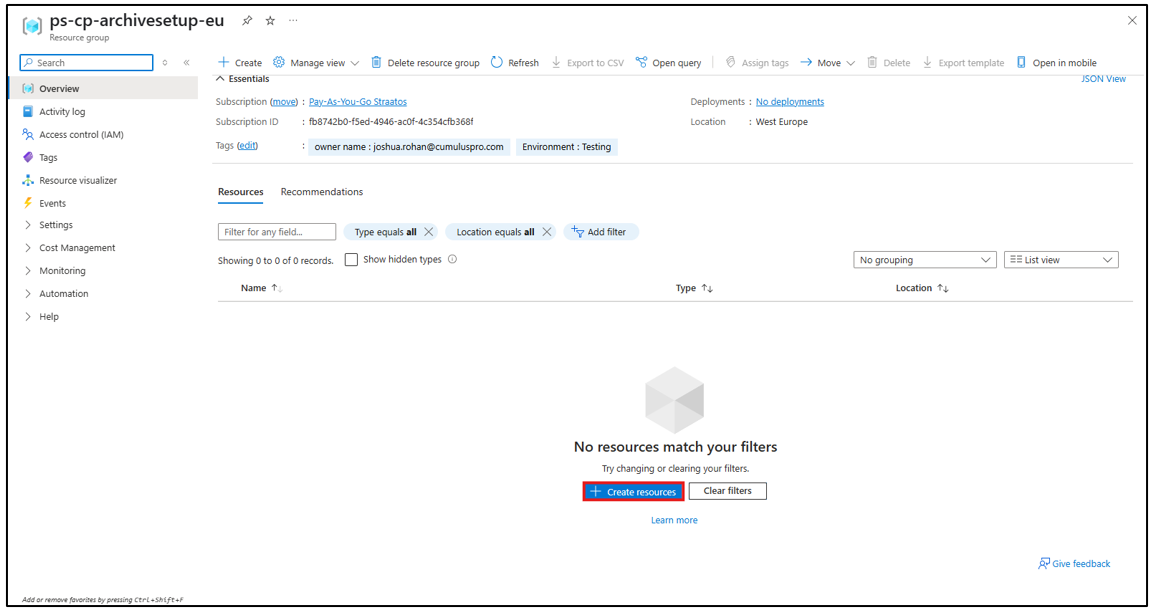
1. In the Overview pane of your resource group, select **Create resources** to add a new resource.

<figure><img src="/files/bypfLbkhBY6wBglYisd9" alt=""><figcaption></figcaption></figure>

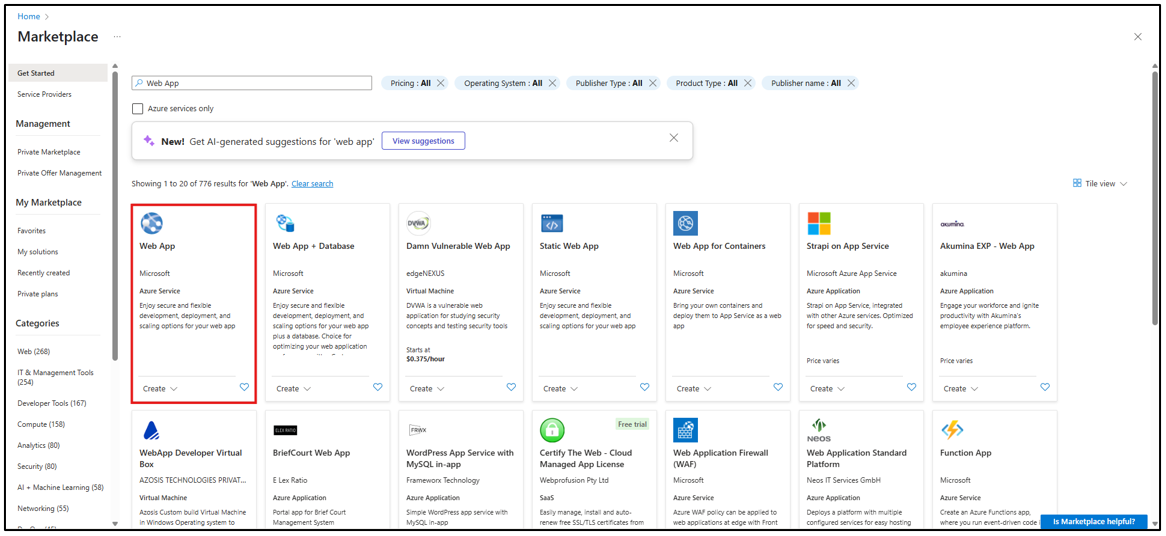
2. Use the search bar, enter Web App then select the first result from the list.

<figure><img src="/files/UAPQHTZ3FvgMYemW7Mkp" alt=""><figcaption></figcaption></figure>

3. Select the first option.

<figure><img src="/files/RKqIeJuA5w8bQqRlyQSV" alt=""><figcaption></figcaption></figure>

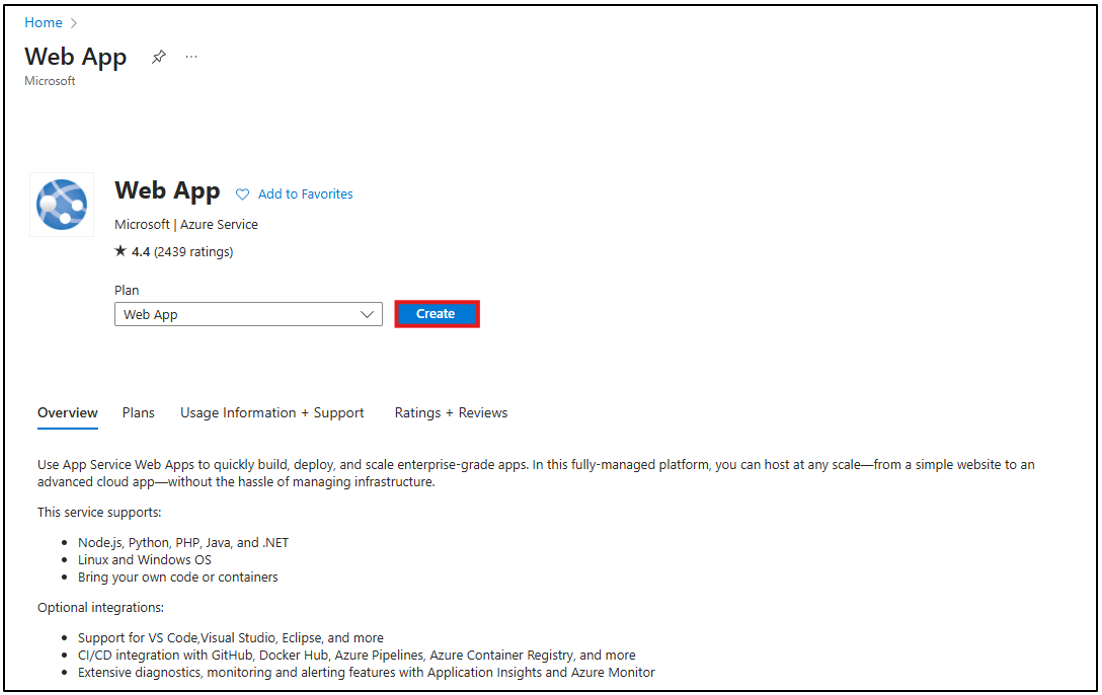
4. Click on **Create**.

<figure><img src="/files/TIjKRNc3c0uXdOxdMphL" alt=""><figcaption></figcaption></figure>

5. Please use the following recommended settings to create the Azure Web App.

<table data-header-hidden><thead><tr><th width="206.27276611328125"></th><th></th></tr></thead><tbody><tr><td>Name</td><td>Web App Service Name (example: webapp-cpro-archive).</td></tr><tr><td>Publish</td><td>Code.</td></tr><tr><td>Runtime Stack</td><td>.Net 8 (LTS).</td></tr><tr><td>Operating System</td><td>Windows.</td></tr><tr><td>Region</td><td>Same region as the Azure Resource Group (example above: West Europe).</td></tr><tr><td>Pricing Plan</td><td>Same region as the Azure Resource Group (example above: West Europe).</td></tr></tbody></table>

<figure><img src="/files/mUcc1xJDzf9Razn8s4kq" alt=""><figcaption></figcaption></figure>

***

### Azure AI Search

#### What is an Azure AI Search?

A cloud-based search service that leverages AI capabilities to index, search, and analyze content across diverse data sources. It supports advanced full-text search, cognitive skills such as OCR and entity recognition, and semantic ranking for improved relevance.

In this solution, Azure AI Search enables secure, intelligent document search and retrieval.

#### Creating Azure AI Search

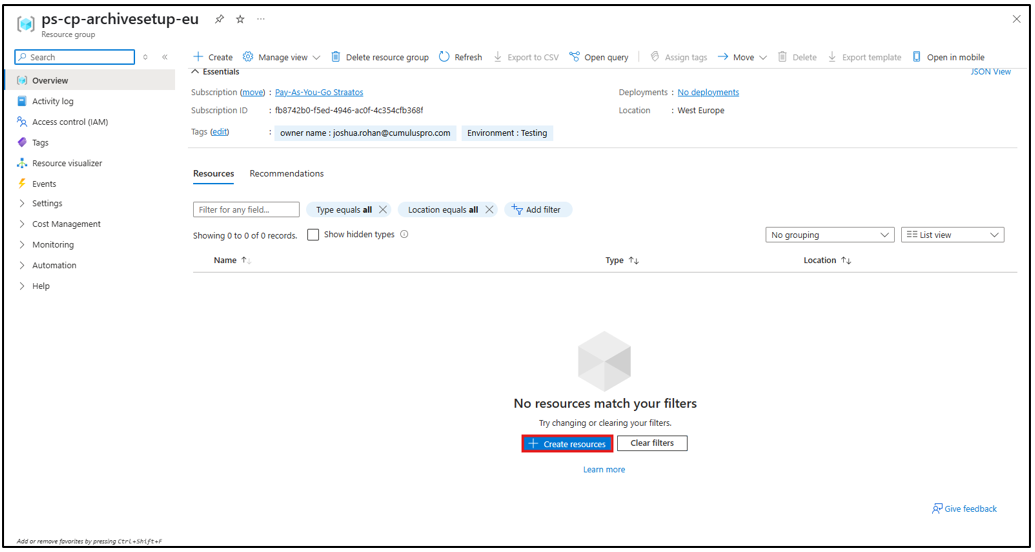
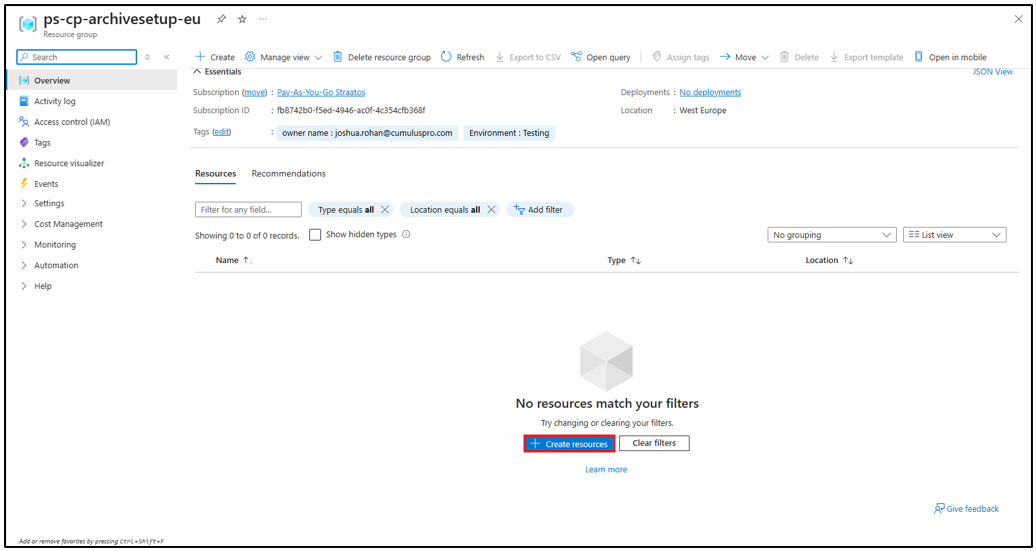
1. In the Overview pane of your resource group, select **Create resources** to add a new resource.

<figure><img src="/files/GBpTk79DfWxxx9ZX575P" alt=""><figcaption></figcaption></figure>

2. Use the search bar, enter **AI Search** then select the first result from the list.

<figure><img src="/files/7Fm6zWiCXbWTZDkPoW7z" alt=""><figcaption></figcaption></figure>

3. Select the first option.

<figure><img src="/files/Phb8jBbMH3ETC511K8h6" alt=""><figcaption></figcaption></figure>

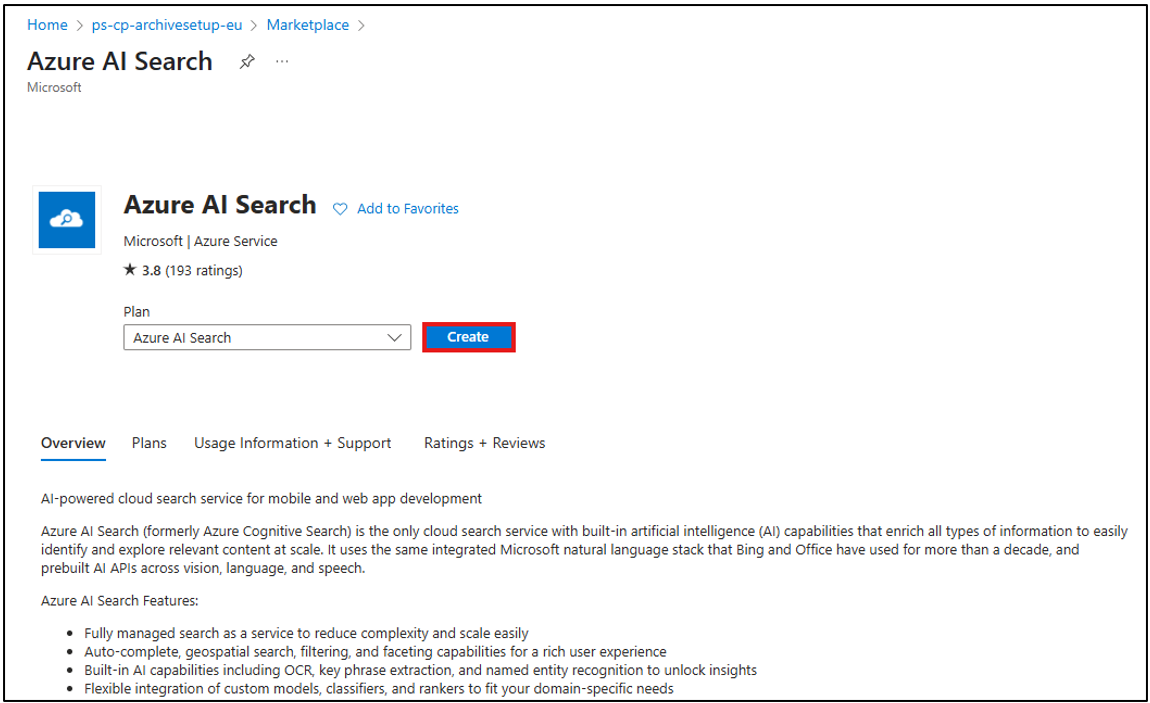
4. Click on **Create**.

<figure><img src="/files/7spJbaxkgwnZFbUBSTZG" alt=""><figcaption></figcaption></figure>

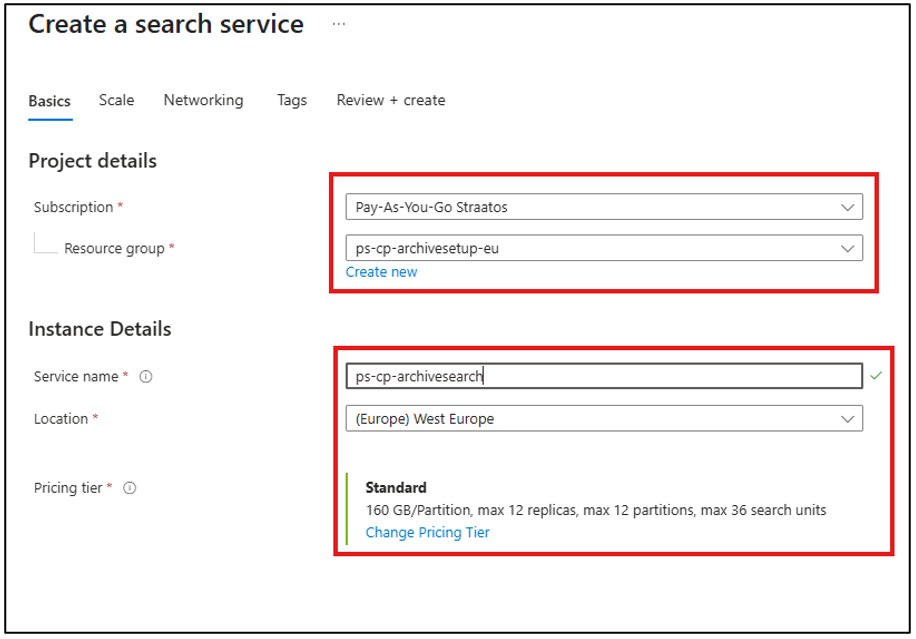
5. Use the recommended configuration settings to create the Azure AI Search service.

{% hint style="info" %}
You may use any name for the Azure AI Search, as long as it meets Azure naming requirements.
{% endhint %}

<figure><img src="/files/6hR8kAj5iUL772k1q1wj" alt=""><figcaption></figcaption></figure>

***

### **Azure Key vault**

#### **What is Azure Key vault?**

A cloud-based service that securely stores and manages sensitive information such as secrets, encryption keys, and certificates. It enhances data protection by providing centralized access control and secure key management for applications.

#### **Creating Azure Key vault**

1. In the Overview pane of your resource group, select **Create resources** to provision a new service.

<figure><img src="/files/ObdRYzJGT7hXFNXvqbTN" alt=""><figcaption></figcaption></figure>

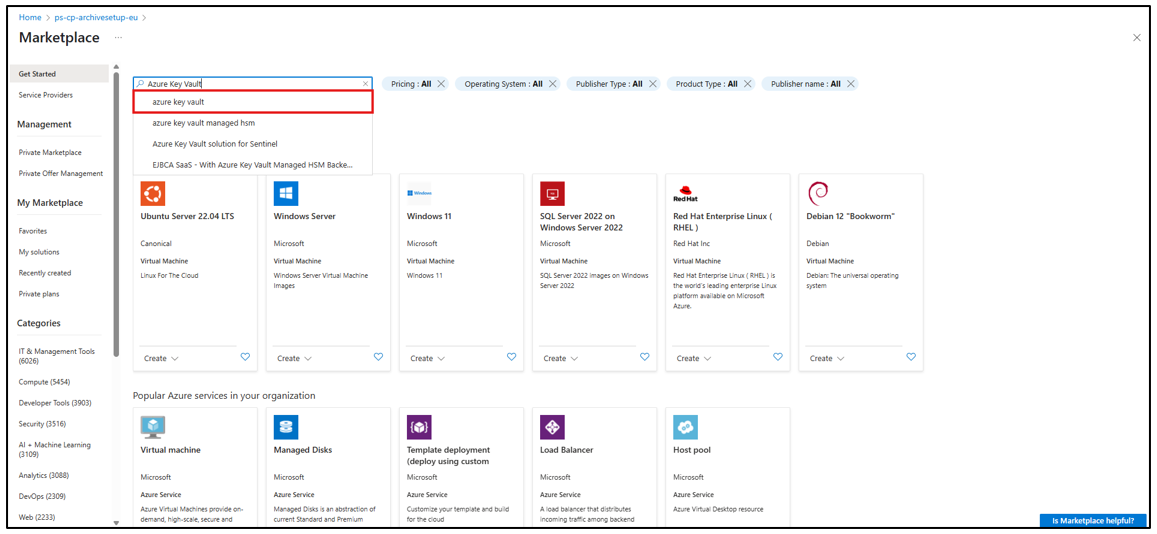
2. Use the search bar, enter **Azure Key vault** and select the first result from the list.

<figure><img src="/files/ST8lthj4FR7m1jqXToRR" alt=""><figcaption></figcaption></figure>

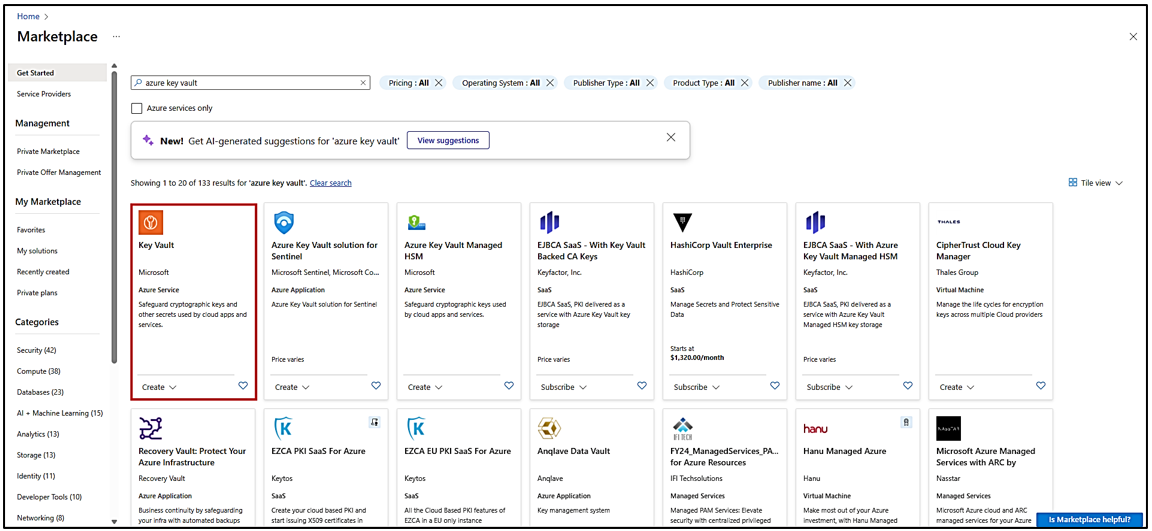
3. Select the first option.

<figure><img src="/files/cHxS7aUZmeyHxUKjB49x" alt=""><figcaption></figcaption></figure>

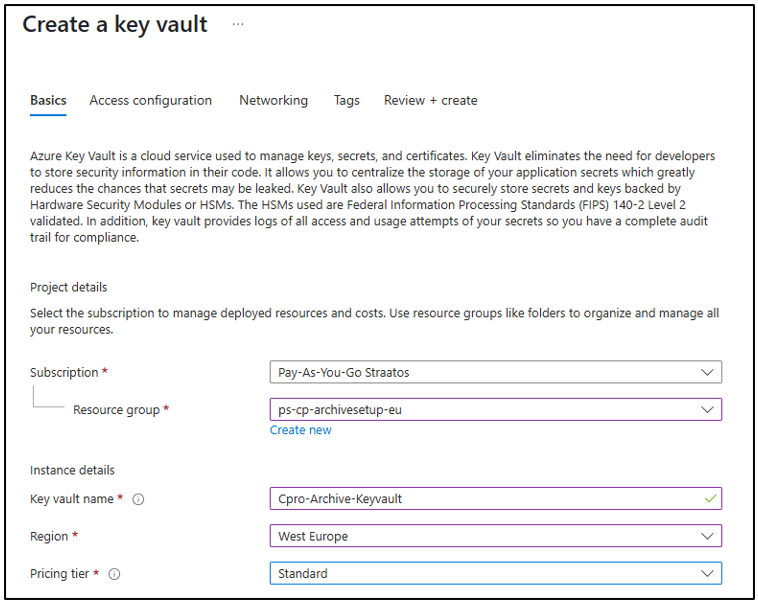
4. Create the Key vault with the following configuration.

{% hint style="info" %}
You may use any name for the Key Vault, as long as it meets Azure naming requirements.
{% endhint %}

<figure><img src="/files/kBlkFy6kN945fmxMycR4" alt=""><figcaption></figcaption></figure>

By default, the Key vault will implement the settings below. You will not need to configure them.

* Access Configuration: Azure role-based access control (RBAC).

<figure><img src="/files/z3ONxd9sNMx588ixdaOG" alt=""><figcaption></figcaption></figure>

* Networking.

<figure><img src="/files/vpbLdqElnRnXT0Gdg8I8" alt=""><figcaption></figcaption></figure>

***

### Azure Storage Account

#### What is Azure Storage Account?

A scalable cloud storage solution for managing data objects such as blobs, files, queues, and tables. It provides secure, durable, and highly available storage for both structured and unstructured data workloads.

#### Creating Azure Storage Account

1. In the Overview pane of your resource group, select **Create resources** to provision a new service.

<figure><img src="/files/le0oGIR2kcQwOo9imfMI" alt=""><figcaption></figcaption></figure>

2. Use the search bar, enter **Azure Storage Account** and select the first result from the list.

<figure><img src="/files/zwNv7Ttp6Cm6IDv6vPlb" alt=""><figcaption></figcaption></figure>

3. Select **Storage account**.

<figure><img src="/files/3BZVnNJDkAHKizO65Gnk" alt=""><figcaption></figcaption></figure>

4. Click on **Create.**

<figure><img src="/files/8myjfOPmB2zVgOCJhhpR" alt=""><figcaption></figcaption></figure>

5. Please follow the recommended settings as the image below.

<figure><img src="/files/B6j1CqQ65x4n9BmlJmnr" alt=""><figcaption></figcaption></figure>

{% hint style="info" %}
You may use any name for the Storage Account, as long as it meets Azure naming requirements. and choose Geo-redundant storage (GRS) for replication and high availability.
{% endhint %}

***

### Azure SQL Database

Stores metadata, document index fields, and archive configuration to support efficient document management and retrieval.

{% hint style="info" %}
An existing SQL server is required. The configuration steps below are intended for creating the database and tables only.
{% endhint %}

#### Creating Azure SQL Database.

1. In the Overview pane of your resource group, select **Create resources** to provision a new service.

<figure><img src="/files/5vocuUNpaVt7V228fpc7" alt=""><figcaption></figcaption></figure>

2. Use the search bar, enter **Azure SQL Database** and select the first result from the list.

<figure><img src="/files/zsZL6kG9Cw9lvZ3D2deD" alt=""><figcaption></figcaption></figure>

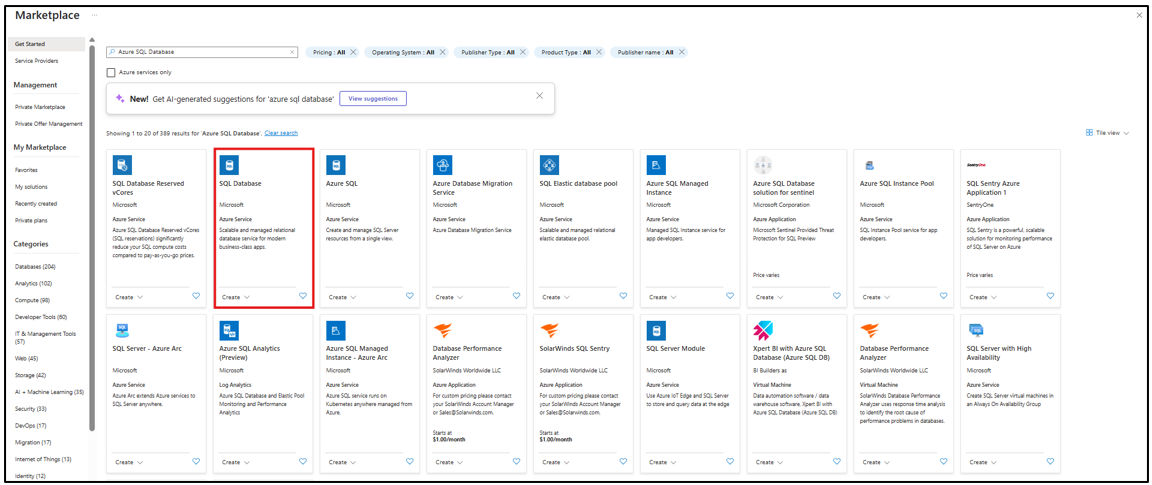
3. Select **SQL Database**.

<figure><img src="/files/K03G0Q3FN7uo6MTjNfD6" alt=""><figcaption></figcaption></figure>

4. Click on **Create**.

<figure><img src="/files/LIlxFaGgrI6NlmrtjCTl" alt=""><figcaption></figcaption></figure>

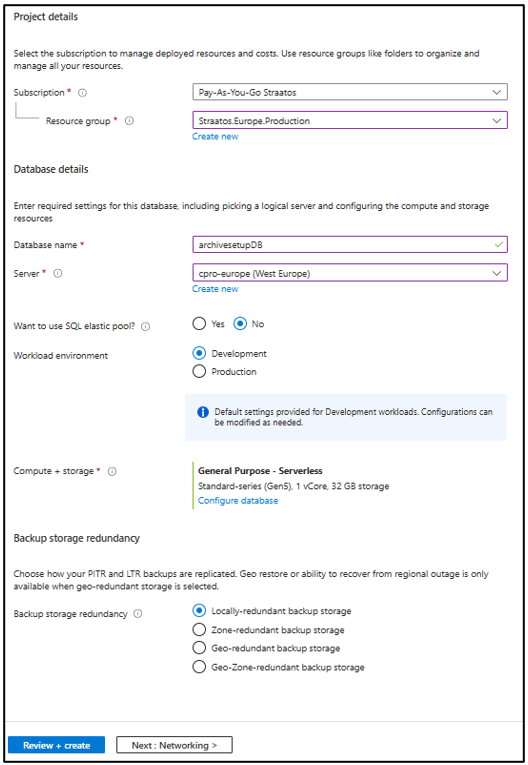
5. Create Azure SQL Database using the following settings.

<table data-header-hidden><thead><tr><th width="202.63641357421875"></th><th></th></tr></thead><tbody><tr><td>Resource Group</td><td>The resource group that was created</td></tr><tr><td>Database Name</td><td>Any name based on your preference</td></tr><tr><td>Server</td><td>Follow the server that has been configured for the rest of the Azure Resources</td></tr></tbody></table>

<figure><img src="/files/NEOH4NuiWWCRBttI0fgM" alt=""><figcaption></figcaption></figure>

6. Click **Review + create** and the Azure SQL Database will be created.

#### **SQL server setup.**

1. In the SQL server, locate the database that was created during the setup process.
2. Right click the database, then select **New Query** to open a query editor window.
3. In the query window, verify that the **Database** dropdown is set to the database you created.
4. In the query window, enter the following two lines of code.

```
CREATE User with Password =
Alter role [db_owner] add member []
```

{% hint style="info" %}
The first line creates a user and a password for the Database.

The second line assigns db\_owne**r** permissions to the user.
{% endhint %}

#### **Example of Database Connection String is as below**

`Data Source=tcp:<servername>.database.windows.net,1433;Initial Catalog=<DBName>;User Id=<Username>;Password=<password>`

***

### **Overview of Created Azure Components**

Upon completion, the following Azure components will be configured:

* Azure Resource Group.
* Azure Web App Service.
* Azure AI Search.
* Azure Key Vault.
* Azure Storage Account.
* Azure SQL Database.


---

# Agent Instructions: Querying This Documentation

If you need additional information that is not directly available in this page, you can query the documentation dynamically by asking a question.

Perform an HTTP GET request on the current page URL with the `ask` query parameter:

```
GET https://help.cumuluspro.net/straatos-archive/creating-all-azure-resources.md?ask=<question>
```

The question should be specific, self-contained, and written in natural language.
The response will contain a direct answer to the question and relevant excerpts and sources from the documentation.

Use this mechanism when the answer is not explicitly present in the current page, you need clarification or additional context, or you want to retrieve related documentation sections.