> For the complete documentation index, see [llms.txt](https://help.cumuluspro.net/llms.txt). Markdown versions of documentation pages are available by appending `.md` to page URLs; this page is available as [Markdown](https://help.cumuluspro.net/straatos-archive/configuring-all-azure-resources.md).
# Configuring all Azure Resources
Below describes the complete configuration of all Azure components in the customer's Azure environment.
* [Azure App Service configuration](https://help.cumuluspro.net/straatos-archive/pages/DxsV5IY9Vjg6quFsl6Si#id-4.1-azure-app-service-configuration)
* [Azure Key Vault configuration](https://help.cumuluspro.net/straatos-archive/pages/DxsV5IY9Vjg6quFsl6Si#id-4.2-azure-key-vault-configuration)
* [Azure AI Search configuration](https://help.cumuluspro.net/straatos-archive/pages/DxsV5IY9Vjg6quFsl6Si#id-4.3-azure-ai-search-configuration)
* [Azure Storage Account configuration](https://help.cumuluspro.net/straatos-archive/pages/DxsV5IY9Vjg6quFsl6Si#id-4.4-azure-storage-account-configuration)
* [Azure Service Bus configuration](https://help.cumuluspro.net/straatos-archive/pages/DxsV5IY9Vjg6quFsl6Si#id-4.5-azure-service-bus-configuration)
* [API Management configuration](https://help.cumuluspro.net/straatos-archive/pages/DxsV5IY9Vjg6quFsl6Si#id-4.6-api-management-configuration)
***
### **Azure App Service configuration**
The full archive setup and configuration are performed within the Azure App Service. To proceed, you will need the deployment package file.
{% file src="/files/cV0YKfK33Po9DcI6ll60" %}
Once you have the file, follow these steps to complete the deployment.
1. Deploy the ZIP file to the Azure App Service by following the steps below.
2. Go to the settings of your Azure Web App. Under **Developer Tools** and open Advanced Tools.
3. Click on **Go** and a new web browser TAB will be opened.
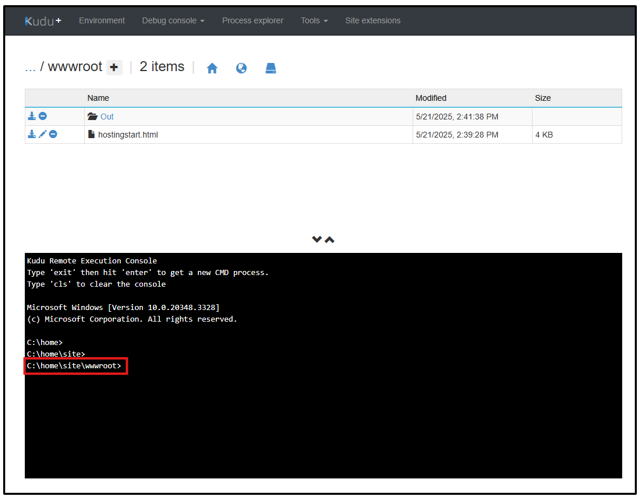
4. Click Debug console > CMD.
5. Go to directory (\home\site\wwwroot).
6. In this directory (\home\site\wwwroot), the ZIP file should be deployed.
7. You can do this by Drag and Drop the ZIP file into this directory.
8. The ZIP file will be automatically extracted into the wwwroot folder.
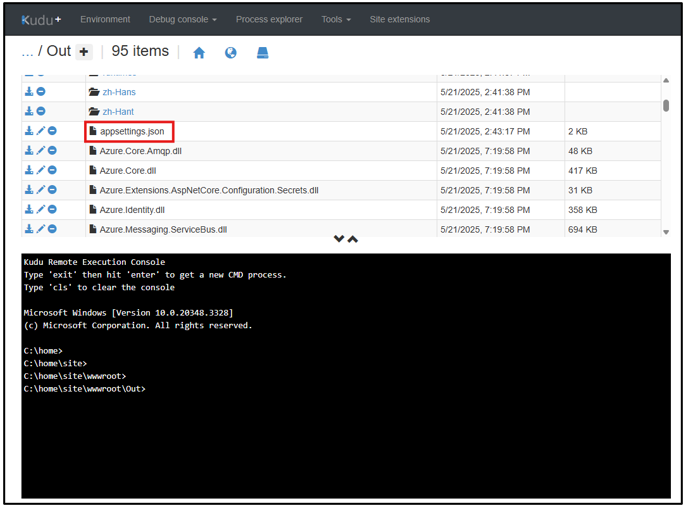
9. After the ZIP file is deployed you can edit / modify the appsettings.json file.
10. The purpose of this appsettings.json file is to configure the complete archive setup when there is no Key Vault available at the customer site.
{% hint style="info" %}
Please avoid configuring settings directly in appsettings.json file instead please utilize Key Vault or app service configuration, or both. Before deploying a new archive connector, ensure a backup of appsettings.json is created. If not using it, ensure all settings are commented.
{% endhint %}
#### Editing the app.settings JSON file
1. Please open the appsettings.json file.
2. Ensure the different sections are commented out by adding the underscore (\_) before each setting.
{% hint style="info" %}
Do this for every section and key in the appsettings.json file.
{% endhint %}
#### Web App Configuration
1. Add a new configuration setting by clicking on **Settings** and **Environment Variables** then click on **Add**.
#### Create the following Web Application settings
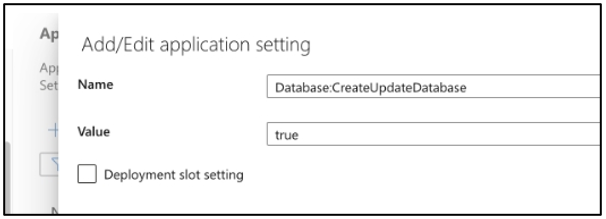
**Application Setting for Database**
* Name: Database:CreateUpdateDatabase.
* Value: true.
**Application Setting for Keyvault**
* Name: KeyVault:Name.
* Value: keyvault-cpro-archive.
{% hint style="info" %}
Please use your own created Key Vault name value.
{% endhint %}
**Application Setting for Storage Account**
* Name: StorageAccount:StorageName.
* Value: storagecproarchive.
{% hint style="info" %}
Please use your own created storage account name value.
{% endhint %}
**Application Setting for Search Index URL**
* Name: SearchIndex:IndexUri.
* Value: .
The value of the SearchIndex:IndexUri can be found in the Azure AI Search.
**Application Setting for Search Index Name**
The index will be created automatically upon the creation of the Azure AI Search.
* Name: SearchIndex:IndexName.
* Value: cprosearchindex.
{% hint style="info" %}
Please use your own created Index Name value.
{% endhint %}
#### Setting up Managed Identity on the Web App
To enable Managed Identity on the Web App:
1. In the **Settings** dropdown select **Identity**.
2. Set Status to On.
3. Click on **Save**.
Key Vault access always uses Managed Identity and below is a description of how to set up Azure role-based access control on the Azure Key Vault.
1. Select the Azure Key Vault and click on **Access configuration**.
2. Select **Azure role-based access control (recommended)**.
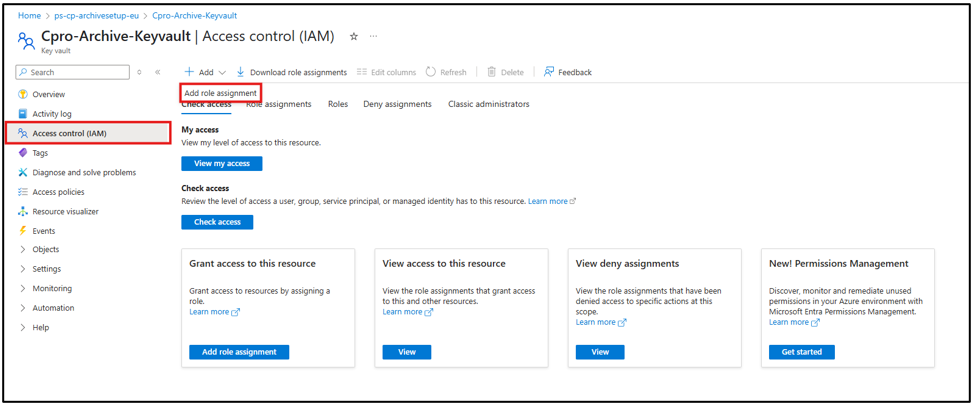
3. Go to Access control (IAM) and click on Add > Add role assignment.
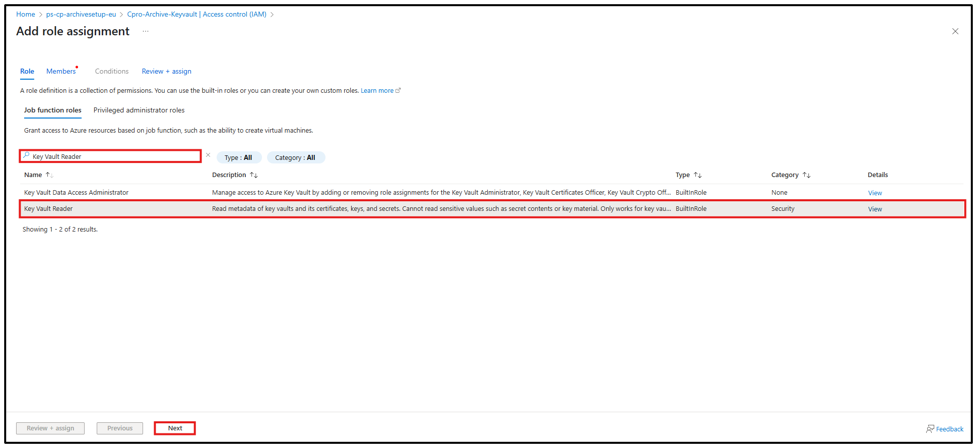
4. Click on Job function roles and search for Key Vault Reader from the search bar. Select Key Vault Reader and click on the Next button.
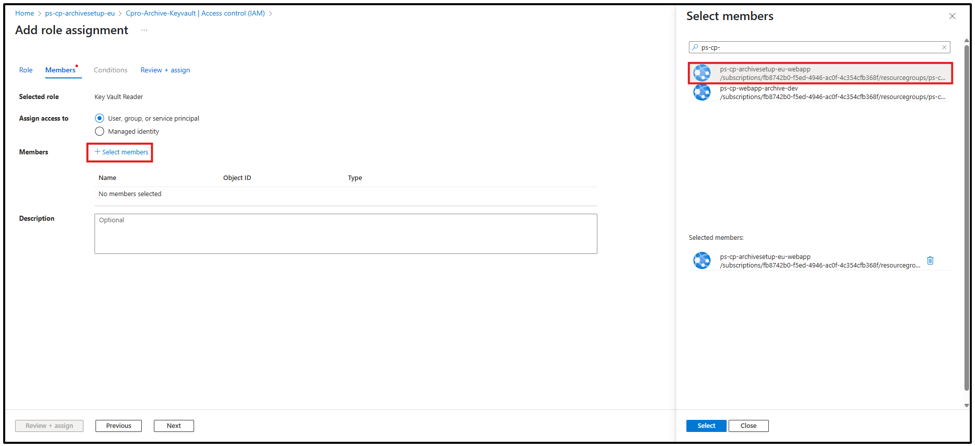
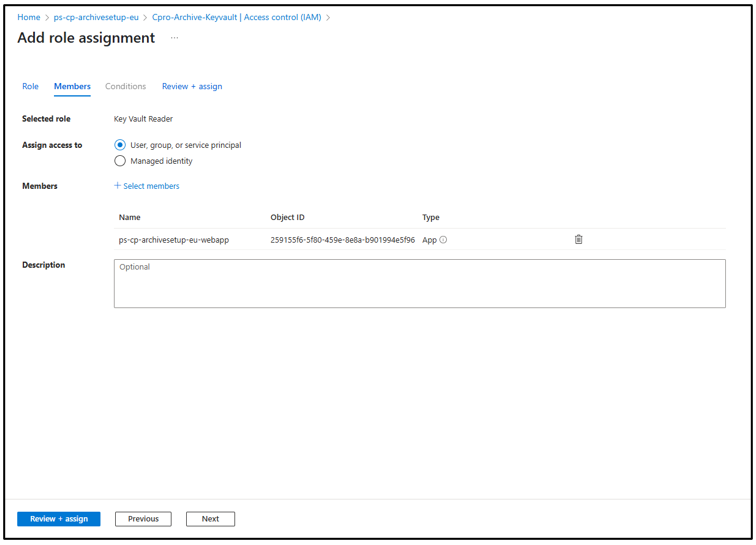
5. From the Members section, click on select members and a window on the right appears to select members. Search for the Azure Web App you have created.
6. Click on **Review + assign** button.
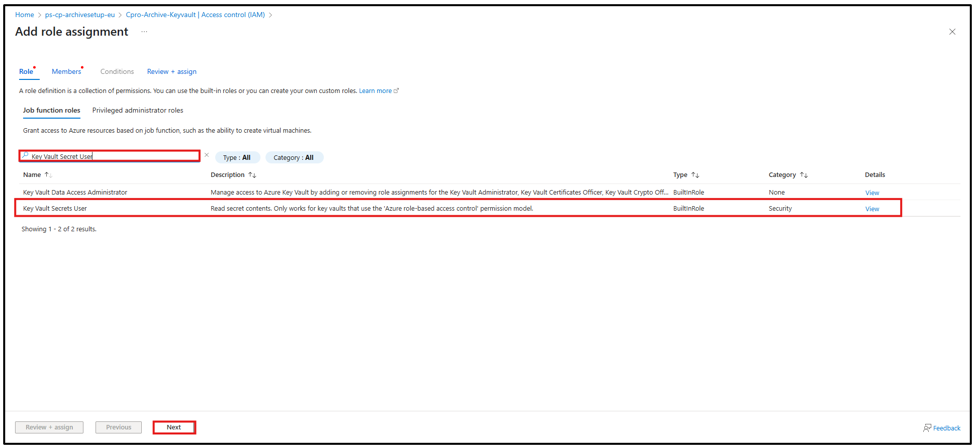
7. Repeat the Add role assignment for the role Key Vault Secret User.
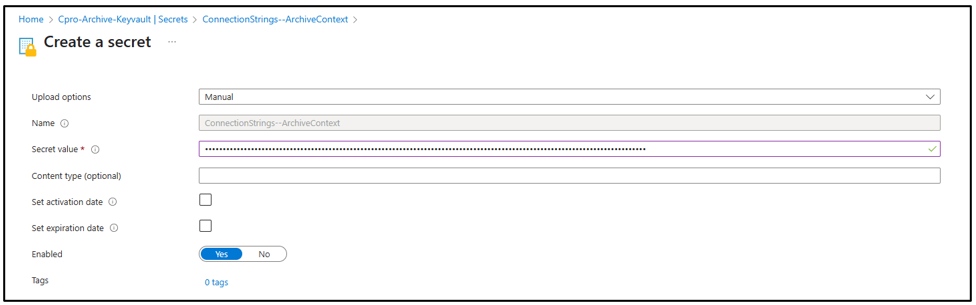
#### Adding the database connection string to the Key Vault
{% hint style="info" %}
In order to create any secrets in the Key Vault. Please ensure that you have enough user rights.
{% endhint %}
* Name: ConnectionStrings—ArchiveContext.
* Secret value:
* `Data Source=tcp:mydb.database.windows.net,1433;Initial Catalog=the-archive-catalog;User Id=mydbaccount;Password=verysecret`
The database user specified should have the following access rights on the database:
* DDL writer/reader access because it will create the database upon application startup.
If needed, these access rights can be revoked after the first successful startup.
***
### Azure AI Search configuration
Azure AI Search uses Managed Identity and below is a description of how to set up Azure role-based access control on the Azure AI Search.
1. Select the AI Search and go to Access Control (IAM) and click on Add > Add role assignment.
2. Add the role **Search Index Data Contributor**.
3. Add the role **Contributor** role (under tab Privileged administrator roles).
4. Change the **Keys** setting of the Cognitive Search resource.
5. In the search service, click on **Keys** and select **Role-based access control.**
***
### Azure Storage Account configuration
The Azure Storage Account is responsible for storing all documents in the archive. Therefore, the following settings must be applied:
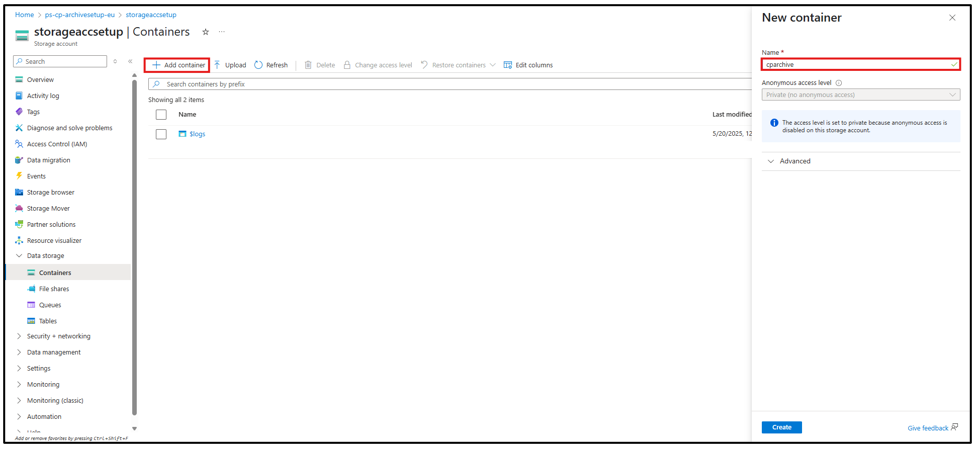
1. Create a new container in the Storage Account (example: cparchive).
2. Select the Web App and click on the **Configuration** and add a new application setting.
* Name: StorageAccount:ContainerName.
* Value: cparchive.
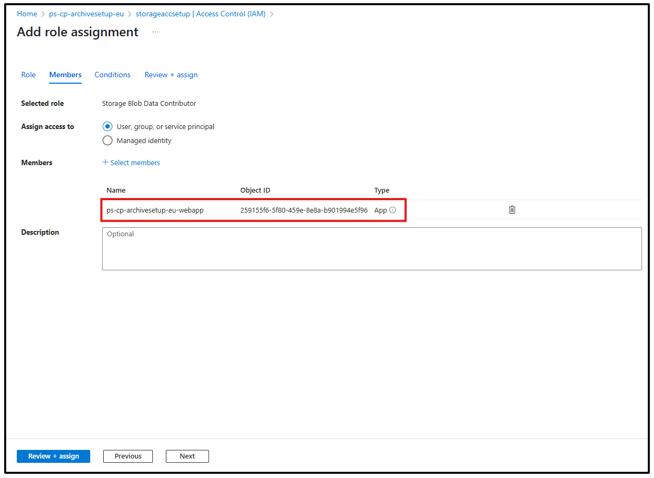
3. The Azure Storage Accounts also work with Managed Identity, and you have to set the correct role rights so the Azure Web App can have access to the Azure Storage container you have just created.
4. Select the Storage account and go to Access Control (IAM) and click on **Add > Add role assignment.**
5. Add the role Storage Blob Data Contributor.
***
### Azure Service Bus configuration
{% hint style="info" %}
The Azure Service Bus will be configured in the CumulusPro Azure environment. CumulusPro Professional Services will take care of the settings below.
{% endhint %}
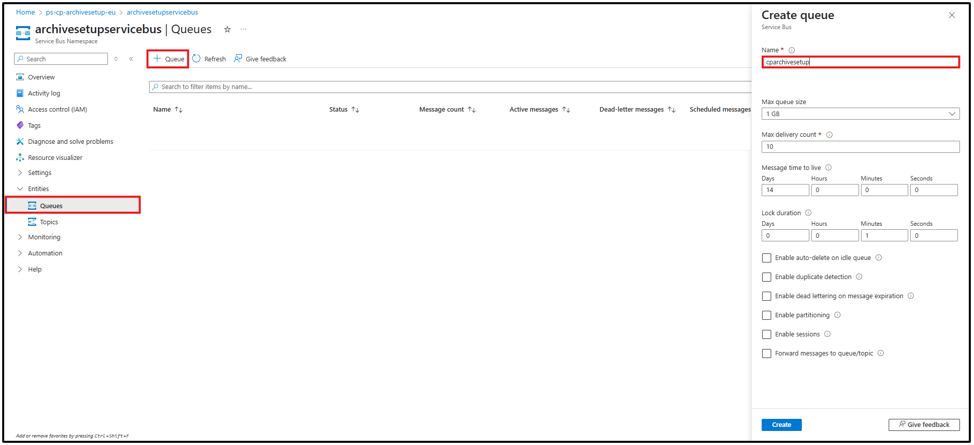
Create two new Queues in the Azure Service Bus. The **archive-result** is a mandatory queue and must have this name:
1. Select the Azure Service Bus and click on **Queues**.
2. Add a new Queue named **archive-result**.
3. Add another queue and you can use your own name.
4. Add a new Queue named archivecpro.
The following queues are now created:
5. Add the newly created Azure Servicebus queue to the Azure Web Application settings.
6. Select the Web App and click on the **Configuration** and add a new application setting.
* Name: ServiceBus:QueueName.
* Value: cparchivesetup.
#### Service bus Shared Access Policy
Create a Share Access Policy on the service bus:
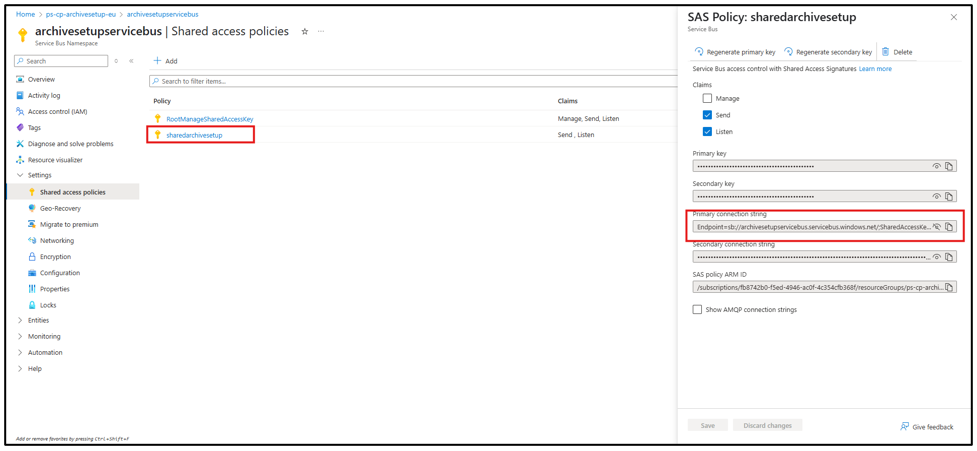
1. Select the Service Bus Namespace and click on the Shared access policies and add a New SAS Policy.
2. Add the access policies **Send** and **Listen**.
Add the Primary Connection String to the Key Vault.
3. Click on sharedcpro to open the configuration.
4. Copy the Primary Connection String which is needed for the Key Vault setting.
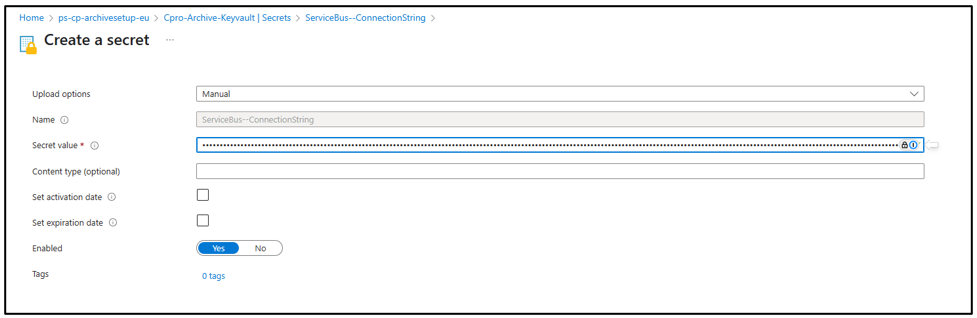
5. Select the Key Vault and click on the Secrets and add a new secret by clicking on Generate/Import.
6. Create a secret:
* Name: ServiceBus—ConnectionString.
* Secret value:
* The primary connection string you copied earlier.
* Example:
* `Endpoint=sb://servicebuscproarchive.servicebus.windows.net/;SharedAccessKeyName=sharedcpro;SharedAccessKey=......`
7. You will now have the following secrets in Key Vault.
***
### API Management Configuration
If the Azure API Management is used, then the following API calls to the archive connector need to be configured.
The curl commands below do not include the body or the Authorization (Bearer Token).
Highlighted parts are parameters that change between calls:
```
curl -X 'PUT' \
'https:///API/Document//SetLegalHold' \
-H 'accept: */*'
curl -X 'PUT' \
'https:///API/Document//UnSetLegalHold' \
-H 'accept: */*'
curl -X 'DELETE' \
'https:///API/Document//DeleteDocument' \
-H 'accept: */*'
curl -X 'GET' \
'https:///API/File/' \
-H 'accept: */*'
curl -X 'GET' \
'https:///API/Index' \
-H 'accept: application/json'
curl -X 'POST' \
'https:///API/Index/AddField' \
-H 'accept: */*' \
-H 'Content-Type: application/json-patch+json'
curl -X 'POST' \
'https:///API/Index/RemoveField' \
-H 'accept: */*' \
-H 'Content-Type: application/json-patch+json'
curl -X 'POST' \
'https:///API/Index/RemoveDocumentField' \
-H 'accept: */*' \
-H 'Content-Type: application/json-patch+json'
curl -X 'POST' \
'https:///API/Index/RebuildIndex' \
-H 'accept: */*' \
-H 'Content-Type: application/json-patch+json'
curl -X 'GET' \
'https:///API/Index/ListIndexes?definitionId=' \
-H 'accept: application/json'
curl -X 'POST' \
'https:///API/Index/ActivateIndex?definitionId=' \
-H 'accept: */*'
curl -X 'POST' \
'https:///API/Index/CancelRebuild' \
-H 'accept: */*'
curl -X 'POST' \
'https:///API/Index/ResumeRebuild?definitionId=' \
-H 'accept: */*'
curl -X 'GET' \
'https:///API/Index/IndexingLogs?limit=&order=' \
-H 'accept: application/json'
curl -X 'POST' \
'https:///API/Search' \
-H 'accept: application/json' \
-H 'Content-Type: application/json-patch+json'
```