> For the complete documentation index, see [llms.txt](https://help.cumuluspro.net/llms.txt). Markdown versions of documentation pages are available by appending `.md` to page URLs; this page is available as [Markdown](https://help.cumuluspro.net/developer-guide/javascript/script-collection-for-straatos.md).
# Script Collection for Straatos
This articles describes the Script Collection for Straatos
This page contains some samples and help for Scripts that can be used in Straatos.
* [Adjust Height of Table in Web Validation](#_Adjust_Height_of).
* [Line Items from Database](#_Line_Items_from).
* [Onwards (Move Document to Next Step)](#onwards-move-documents-to-next-step).
* [Sequence Numbering](#_Sequence_Numbering).
* [Show/Hide Fields](#_Show/Hide_Fields).
* [Timer](#_Timer).
* [Hide Table Columns in Web Validation](#_Hide_Table_Columns).
* [Enable/Disable Mandatory Option in Fields in Web Validation](#_Enable/Disable_Mandatory_Option).
* [Blank Page Removal](#_Blank_Page_Removal).
* [Error Handling with Error Event](#_Error_Handling_with).
* [Start New Workflow from Script](#_Start_New_Workflow).
* [AJAX Call with XML Data and Ampersand (&)](#_Ajax_Call_with).
* [Table Updates in Script Task](#_Table_Updates_in).
* [Table Updates in MyHome](#_Table_Updates_in_1).
* [Split Document](#_Split_Document).
* [Get File Size](#_Get_File_Size).
***
### **Adjust Height of Table in Web Validation**
It is useful to adjust the default height of the table in Web Validation (see red box area):
You can do this by copying the following script into the 'Prescript' section of the workflow.
```
document.Tables[0].PanelHeight = 100;
cpapp.showHideTable(document);
cpviewer.reload();
```
If you use multiple Web Validation steps in a single process and want to display the table with different heights in different steps, you can use an if statement to do that.
```
if (cpapp._step.Name == "Name of WebValidation Step")
```
***
### **Line Items from Database**
This script allows you to retrieve and display line items from a database based on a specific Index Field value.
Example use case:
* When a PO Number is entered in an index field, the corresponding line items for that PO Number can be fetched from the database and displayed in Web Validation.
#### Configuration steps
1. Identify the Index Field that should trigger the line item retrieval.
* Example: PONumber.
2. Navigate to the 'Change Script' section of the selected Index Field.
3. Implement the script to fetch and populate line items dynamically.
Set the following options to on:
* Change Script Changes Field Definition.
* Change Script Changes Field Values.
* Change Script is Asynchronous.
In the 'Change Script', use the following code below.
```javascript
populateTable(field, fields);
function fieldByName(line, name) {
return line.Fields.filter(function (field) { return field.Name === name; })[0];
}
function populateTable(field, fields){
// Retrieve data from matching table
var query = {
User: 'DB user ID',
Password: 'login password',
SqlQuery: 'select * from DB table name where PONumber = @PONumber ' ,
Parameters: {
'@PONumber': value
}
};
try {
var data = straatos.data.query(query);
if (data.ErrorMessage) {
fields.PONumber.ErrorMessage = data.ErrorMessage;
} else if (data.Records.length > 0) {
var table = document.Tables[0];
table.Body.Lines = [];
for (var i=0; i
The timer event can be setup based on three generic options.
Duration (in days, hours, minutes). This delays a task for a certain number of time from the time the task reaches this step.
Time Cycle based on a Cron Expressen: Supporting a delay to be sent on a specific time/date. For example every 1st of the Month, Every 10 Minutes etc.).
Workflow/Index field:
* Based on a date/time of an index field.
Details on Index field date.
The value can be set in the following way:
* 2016-12-06T09:00:00+01:00
* The Time is optional. For example the following is valid:
* 2016-12-06.
* In this case, the documents waiting in the timer event are released at midnight on the 6 December 2016. Midnight refers to UTC/GMT.
* 2016-12-06T09:00:00:
* In this case, the time is set to 09:00 am UTC/GMT time.
* 2016-12-06T09:00:00+01:00:
* In this case, the time is set to 09:00 UTC/GMT +1 (timezone).
Script to use to set a date:
```javascript
DueDate = '2016-12-06T09:00:00+10';
```
***
### **Hide Table Columns in Web Validation**
If you have created a table and want to display/hide certain columns depending on the workflow step, here is how it is done:
Example: User Task (Accounting Coding) will see the following table column fields:
* KontoListe.
* KostenstelleListe.
* Betrag
User Task (PO Exception) will see the following table column fields:
* ArtikelNr.
* Bezeichnung.
* Menge.
* ME.
* Preis.
* BetragCHF.
Script Library
```javascript
function hideLineItemFields(fields, hide) {
$('#itable table tr > *:nth-child(4)').hide();
$('#itable table tr > *:nth-child(5)').hide();
$('#itable table tr > *:nth-child(6)').hide();
$('#itable table tr > *:nth-child(7)').hide();
$('#itable table tr > *:nth-child(8)').hide();
$('#itable table tr > *:nth-child(9)').hide();
}
function hideAccountingFields(fields, hide) {
$('#itable table tr > *:nth-child(1)').hide();
$('#itable table tr > *:nth-child(2)').hide();
$('#itable table tr > *:nth-child(3)').hide();
}
```
{% hint style="info" %}
Table column field start from 1
{% endhint %}
Pre Script:
```javascript
if (cpapp._step.Name == 'Kontrolle und Kontierung'') {
hideLineItemFields(fields, true);
}
else if (cpapp._step.Name == 'PO Exception' ) {
hideAccountingFields(fields, true);
}
```
***
### **Enable/Disable Mandatory Option for Fields in Web Validation**
Here is a script which enables/disables the field mandatory property. Below is the script 'mandatory' shall be call from function as 'true'.
```javascript
function EnableMandatory (fields,mandatory){
fields.InvoiceNumber.IsRequired = mandatory;
}
function DisableMandatory (fields,mandatory){
fields.InvoiceNumber.IsRequired = !mandatory;
}
```
***
### **Blank Page Removal**
The following script removes blank pages from a document.
Before executing the script:
1. Enable the 'Create Separate Pages from PDF' option in the Start Event settings.
2. Use the script below to detect and remove blank pages automatically.
Implementation
* The script scans each page to determine if it is blank and removes it accordingly.
* This ensures that only relevant content remains in the document.
```javascript
try {
var documentInfo = straatos.adapter.getDocumentInfo();
for (var p = documentInfo.documentPages.length - 1; p >= 0; p--) {
var magickDetectInput = {
DocumentId: _documentId,
OutputFormat: 'info',
ReturnOutput: true,
PageIndex: p,
Parameters:
'-format "%[fx:mean>0.99?1:0]"' //adjust parameters here to change blank page detection
};
try {
var output = straatos.adapter.magick(magickDetectInput);
if ('"1"' == output) {
console.log('Magick output: ' + output + ', page index ' + p + ' should be removed.');
var deletePageInput = {
PageIndex: p
};
try {
console.log(JSON.stringify(deletePageInput));
var deletePage = straatos.adapter.deleteDocumentPage(deletePageInput);
console.log(JSON.stringify(deletePage));
} catch(error) {
straatos.setError('deletePage error:' + error);
}
}
} catch(error) {
straatos.setError('Magick error: ' + error);
}
}
} catch(error) {
straatos.setError('documentInfo error: ' + error);
}
```
***
### **Error Handling with Error Event**
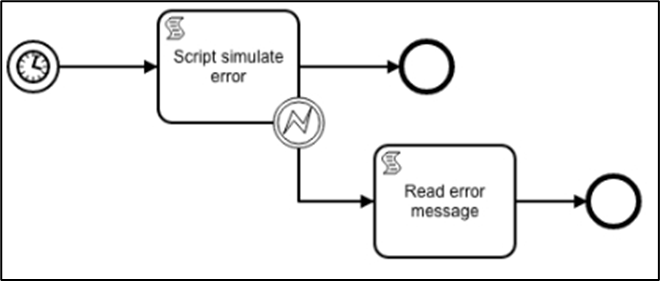
The error event is able to catch the error in a module and to route a task/document to a different flow in the process. The diagram below is a simple flow that catches an error event and routes it to a different step.
The step 'Script simulate error' produces an error. The Error Event catches the error and routes the document to the step 'Read error message'.
The script error event is triggered by most modules automatically. When using a script task, then an error can be triggered using the following script.
```javascript
straatos.setError("Simulated error message");
```
In order to display the original error message (or to use the original error message in script) in the step 'Read error message', use the following code to retrieve the message.
```javascript
ErrorMessage = _errorMessage;
```
{% hint style="info" %}
The variable 'ErrorMessage' above is a Workflow Index field.
{% endhint %}
***
### **Start New Workflow from Script**
```javascript
var configUniqueId = straatos.uuid();
var docUniqueId = straatos.uuid();
straatos.ajax({
url: 'https://effektif-connector.cumuluspro.net/ConnectorService.svc/json/UploadMetadata',
data: JSON.stringify({
ConfigurationUniqueId: '5ac4f9ab-7b0b-4982-bd75-533c1a2.....',
UniqueId: configUniqueId,
Documents: [{
DocumentTypeUniqueId: '48e8c45d-ca8a-4106-8aec-fb741be.....',
UniqueId: docUniqueId,
DocumentFormat: 'PDF',
Fields: [{
Name: 'OriginalDocumentId',
Value: '' + _documentId
},{
Name: 'SupplierName',
Value: '' + SupplierName
},{
Name: 'SupplierCode',
Value: '' + SupplierCode
},{
Name: 'TranType',
Value: '' + TranType
},{
Name: 'InvNo',
Value: '' + InvNo
},{
Name: 'InvDate',
Value: '' + InvDate.format('YYYY-MM-DD')
},{
Name: 'PONum',
Value: '' + PONum
},{
Name: 'NET',
Value: '' + NET
},{
Name: 'VAT',
Value: '' + VAT
},{
Name: 'Gross',
Value: '' + Gross
},{
Name: 'CostCentre',
Value: '' + CostCentre
},{
Name: 'NominalCode',
Value: '' + NominalCode
},{
Name: 'Department',
Value: '' + Department
},{
Name: 'RowID',
Value: '' + RowID
},{
Name: 'Table',
Value: JSON.stringify(table)
}]
}]
}),
method: 'POST'
}).done(function (result) {
console.log ('UploadMetadata ' + result);
effektif.ajax({
url: 'https://effektif-connector.cumuluspro.net/ConnectorService.svc/json/UploadDocument',
data: pdf,
contentType: 'application/pdf',
headers: {
'X-Configuration-Unique-Id': configUniqueId,
'X-Document-Unique-Id': docUniqueId,
'X-Page-Number': '1',
'X-Number-Of-Pages': '1'
},
method: 'POST'
}).done(function (result) {
console.log ('UploadDocument ' + result);
}).fail(function (jqXHR, error) {
_errorMessage = 'UploadDocument ' + error;
onwards = false;
});
}).fail(function (jqXHR, error) {
_errorMessage = 'UploadMetadata ' + error;
onwards = false;
});
}).fail(function (jqXHR, error) {
_errorMessage = 'Webmerge ' + error;
onwards = false;
});
```
***
### **Ajax Call with XML Data and Ampersand (&)**
When sending data via an AJAX call with content type application/x-www-form-urlencoded, special characters like ampersand (&) require special handling.
Scenario:
If your data includes an ampersand, such as:
```javascript
xmlCopyEditJohnson & Johnson
```
In normal XML conversion, & is automatically converted to &:
```javascript
xmlCopyEditJohnson & Johnson
```
When using application/x-www-form-urlencoded, the ampersand (&) in & is still problematic because & is used as a parameter separator in URL-encoded data.
To resolve this, encode & as %26, so your XML becomes:
```javascript
xmlCopyEditJohnson %26amp; Johnson
```
With this, you are then able to send the data.
Sample code is below
```javascript
var strOutput = 'Johnson & Johnson';
var encodedData = strOutput.replace('&','%26amp;');
var formData = straatos.newFormData();
formData.append('api_key=' + apiKey + '&document_id=' + xtractaDocumentId + '&document_status=' + vDocStatus + '&submit=Submit' + "&field_data=" + encodedData);
straatos.ajax({
url: '',
method: 'POST',
contentType: 'application/x-www-form-urlencoded',
data: formData
}).done(function (responseXML) {
console.log('Xtracta Response: '+responseXML);
var returnedStatus = straatos.parseXML(responseXML).documentElement.selectSingleElement('status').text;
console.log(returnedStatus);
if (returnedStatus == '200'){
}
else{
straatos.SetError('Error: ' + response.documents_response.message);
}
}).fail(function (jqXHR, error) {
console.log('Error:' + error);
straatos.setError('Error: ' + error);
});
```
{% hint style="info" %}
The var xOutput would be your XML body. The important line are the encodedData where all & are replaced by '%26amp;' then the form data is assigned. In the formData.append, you can add all the fields that need to be sent. At the end is the encodedData which contains modified XML.
{% endhint %}
***
### **Table Updates in Script Task**
In Straatos, table fields can be updated dynamically using scripts. The following example demonstrates how to:
* Access a table.
* Retrieve line items and fields.
* Perform calculations and assign values.
Example: Summing the LineTotal Field.
The script below:
1. Checks if there are any line items.
2. Iterates through each line item and retrieves the value of the LineTotal field.
3. Sums up all LineTotal values in the invlinesum variable.
4. Assigns the sum to the index field NetTotal.
5. Logs the result in the console.
```javascript
if (_table.body.lines.length) {
for (var i = 0; i < _table.body.lines.length; i++) {
invlinesum += parseFloat(_table.body.lines[i].LineTotal.value);
}
NetTotal = roundAmount(invlinesum);
console.log('invlinesum:' + invlinesum);
console.log('Net Total:' + NetTotal);
}
```
When users edit and delete line items in a MyHome task, the line numbering may become inconsistent. This script ensures that the LineNumber field remains sequential by renumbering all line items after changes.
How the Script Works:
1. Iterates through all line items in the table.
2. Checks if the Match field exists (i.e., not null or undefined).
3. Assigns a continuous number to the LineNumber field.
For the first column 'LineNumber' it assigns the value of the counter.
At the end (starting with \_table ={) the values are assigned to the table.
```javascript
if (_table.body.lines.length) {
for (var i = 0; i < _table.body.lines.length; i++) {
counter = counter + 1;
if(_table.body.lines[i]) {
var tableLine = {
LineNumber: { value: counter },
Match : {value: _table.body.lines[i].Match? _table.body.lines[i].Match.value : ''},
Quantity : {value: _table.body.lines[i].Quantity? _table.body.lines[i].Quantity.value : 0},
PO : {value: _table.body.lines[i].PO ? _table.body.lines[i].PO.value : ''},
VATRate : {value: _table.body.lines[i].VATRate ? _table.body.lines[i].VATRate.value : 0}
};
tableLines.push(tableLine);
}
}
_table = {
body: {
lines: tableLines
}
};
}
```
***
### **Table Updates in MyHome**
The following function can be defined in the Script Library and used in My Home to update the table lines.
The script goes through each line item and sums up the LineTotal into the variable invlinesum. The invlinesum, after all amounts of the table are added is populated into the header field 'NetTotal'. This script can be executed when the table is updated to show the sum of an amount in a table.
```javascript
/ Check Sum Line item
function sumLineItem(fields, table) {
var invlinesum = 0;
if (table.body.rows.length > 0) {
for (var i = 0; i < table.body.rows.length; i++) {
if (table.body.rows[i].LineTotal) {
invlinesum = invlinesum + parseFloat(table.body.rows[i].LineTotal);
}
}
// Check if Net Total = POP Total Net
fields.NetTotal.Value = invlinesum;
console.log('NetTotal: ' + fields.NetTotal.Value);
}
}
```
The script below updates the line item values in My Home based on a lookup. In the Ajax call, a web service is called to return the Supplier data.
Based on the returned values, 4 table line items are updated.
```javascript
function fillGRNLineItemFields(poNumber, itemCode, rowIndex, fields, table, finished) {
$.ajax({
url: 'https://effektif-connector.cumuluspro.net/ConnectorService.svc/json/Interact//lookupGRNSupplierPartRef',
method: 'POST',
headers: {'X-Session-Id': Utils.readCookie('s')},
data: JSON.stringify({ poNumber: poNumber, itemCode: itemCode })
}).done(function (dataString) {
var data = JSON.parse(dataString);
if (data.ErrorMessage) {
console.log('fillLineItemFields Query Error: ' + data.ErrorMessage);
} else if (data.Records && data.Records.length == 1 ){
table.body.fieldsForRow[rowIndex].GRNQuantity.Value = data.Records[0].Quantity;
table.body.fieldsForRow[rowIndex].GRNItemDescription.Value = data.Records[0].ItemDescription;
table.body.fieldsForRow[rowIndex].GRNUnitPrice.Value = data.Records[0].UnitPrice;
table.body.fieldsForRow[rowIndex].GRNLineTotalNet.Value = data.Records[0].LineTotalValue;
}
finished();
}).fail(function (jqXHR, error) {
finished();
});
}
```
***
### **Split Document**
```javascript
function splitDocument(index, documentType) {
var docID = _documentId;
try {
var splitInput = {
WorkflowInstanceId :straatos.getWorkflowInstanceIdByDocumentId(docID),
PageIndex: index
};
var splitResult = straatos.adapter.splitDocument(splitInput);
var messageInput = {
workflowId: workflowId,
activityId: activityId,
workflowInstances: [{
workflowInstanceId: JSON.parse(splitResult).WorkflowInstanceId,
variables: [{
id: 'DocumentType',
value: documentType
}, {
id: 'PolicyNo',
value: PolicyNo
}, {
id: 'OutputPath',
value: OutputPath
}, {
id: 'BatchNo',
value: BatchNo
}, {
id: 'POSNo',
value: POSNo
}, {
id: 'ScanDate',
value: ScanDate
}, {
id: 'SeqNo',
value: SeqNo
}
]
}]
};
effektif.ajax({
url: 'https://effektif-cpro-qa.azurewebsites.net/effektif-web/cp/message',
data: JSON.stringify(messageInput),
method: 'POST'
}).done(function (messageResultString) {
console.log('messageResultString: ' + messageResultString);
}).fail(function (jqXHR, error) {
_errorMessage = 'Message error: ' + error;
onwards = false;
});
} catch (error) {
_errorMessage = 'Delete page error: ' + error;
onwards = false;
}
}
splitDocument(NbDocPageIndex, 'DTB-NBDOC');
splitDocument(SuppDocPageIndex, 'DTB-SUPPDOC');
DocumentType = 'DTB-APPLFORM';
```
***
### **Get File Size**
When you need to get the file size of a document received, you can do this with the following script below.
```javascript
straatos.ajax({ url: url, method: 'GET'}).done(function(data, nothing, response) {
console.log('Length: ' + data.length);
});
```