Straatos Interact API

This articles describes Staatos Interact API functionality

Straatos Interact API enables 3rd party applications and web services to interact with Straatos to create new tasks, upload documents, update existing tasks, return values of tasks to the 3rd party application.

To know more about how two programs connect using web services, please refer to FAQs.

Click highlighted areas for more information:

References


Benefits

  • Straatos accepts web service calls from any POST/GET web service call, regardless of parameters, headers, or body.

  • Reduce development time of integration from weeks to days.

  • No additional hosting fees and third-party service provider.

  • Control functionality and data available through the web service.

  • Control security of the web service.


How Does it Work

Straatos Interact API allows you (or the CumulusPro Professional Services team) to define your own Straatos API in a simple JavaScript. Hosting of API is done on Straatos Platform and API can be accessed through Admin Panel.


Web Service URL

Every organisation in Straatos has its own URL. The URL is unique to specific organisation and cannot be changed.

Example:

  • https://effektifconnector.cumuluspro.net/ConnectorService.svc/json/Interact/

circle-info

Actual URL can change based on your organisation and geographical location.

Configuration of the Web Service

JavaScript is used to define the web service. To define a new web service, go to Admin Panel > Organisation > Interact Script.

How to create a new task in a Straatos process.

Name
Where to look
Description

createTask

Line 1

New web service is defined.

Web service calls are checked if it is for web service.createTask.

Line 4

New task in Straatos created for the process ‘Test QA Workflow’ and Start Event ‘Start’.

Line 6

Response provided to calling web service.

Sample Code

For easier development and troubleshooting, Admin Panel provides a Log where console.log can write logging data.

To call this web service from a 3rd party application, the following URL can be used:

Example:

  • https://effektif-connector.cumuluspro.net/ConnectorService.svc/json/Interact//createTask


API Documentation

This section describes how to use Straatos interact API to create new tasks, upload documents, update existing tasks, return values of tasks to 3rd party application.

API Server and Base URL

Region
URL

Europe

https://effektifconnector.cumuluspro.net/ConnectorService.svc/json/Interact/

Switzerland

https://effektifconnector-ch.cumuluspro.net/ConnectorService.svc/json/Interact/

Asia

https://effektifconnector-asia.cumuluspro.net/ConnectorService.svc/json/Interact/

To know more about Organisation ID, refer to FAQs.

Request and Response Parameter

Request and response parameter contain information sent to web service and response sent by web service to web service call. Refer to Sample Code section for more details.

Request

Name
Type
Description

pathSegments

string

Path segments. for example:

URL

pathSegments

https://domain.net/Connector.svc/json/Interact/A3B23-GUID-E76B/P2/P3

['A3B23-GUID-E76B', 'P2', 'P3']

queryParameters

For example: URL: https://domain.net/Connector.svc/json/Interact/A3B23-GUID-E76B/P2/P3?id=123&type=b

headers

?

Request headers as passed into the Interact call, for example,

{ 'Accept': 'application/json', 'X-Header': '123' }

contentType

string

Request content type as passed into the Interact call, for example, application/json

body

Request body as passed into the Interact call as byte [] or string using UTF-8 encoding. Not available for multipart requests (Content-Type starts with 'multipart/').

multipart

MultiPartRequest

Parsed parts of the multipart, only available if the request is a multipart request (Content-Type starts with 'multipart/')

Response

Name
Type
Description

status

number

HTTP status code to return to the client, 200 by default

headers

Response headers that are returned to the client.

For example: { 'Accept': 'application/json', 'X-Header': '123' }

body

Response body as byte[] or MultiPart. To convert a string to byte[], you can use straatos.getBytes(stringVariable). A MultiPart object can be created using straatos.newFormData()


Straatos Functions

Straatos contains functions to interact with the platform.

Name
Attribute
Description

findDocuments

fn(workflowName: string, activityName: string, variables: ?) -> [number]

Find documents in the specified workflow step that match the variables (for example, { 'InvoiceNumber': 'IN12345' }). Returns an array with document ids.

messageWorkflow

fn(workflowName: string, activityName: string, documentIds: [number], variables: ?)

Send a message to the specified documents (usually acquired through straatos.findDocuments()) in the specified workflow step. The specified (workflow) variables (for example, { 'Status': 'Verified' }) will be updated.

addDocument

fn(workflowName: string, startEventName: string) -> number

Create a document, required for startWorkflow. Returns the document id.

addComment

fn(documentId: number, comment: string, commentDateTimeIso8601: string)

Adds a document comment. commentDateTimeIso8601 should be in ISO datetime format (YYYYMMDDThhmmss ie 2021-04-10T16:56:02Z)

startWorkflow

fn(documentId: number, variables: ?)

Start the workflow / start event for the specified document (created with addDocument). The specified (workflow) variables (for example, { 'Status': 'Verified' }) will be assigned.

getVariables

fn(documentId: number) -> ?

Get the workflow field values for the specified document (for example, { 'Name': 'John', 'InvoiceNumber': 'IN12345' })

setDocumentContent

fn(documentId: number, files: [?], filetype: string, createPagePreviews: bool, createPDFPreviews: bool)

Add content to the document. The filetype parameters must be 'tif', 'pdf' or 'jpg' Each entry in the files parameter array should be a binary (byte[]), either a single (multi page) TIF, a single (multi page) PDF or one or more JPG files.

ajax

fn(parameters: AjaxParameters) -> jqXHR

Perform a synchronous HTTP (Ajax) request.

getString

fn(data: ?) -> string

Convert byte[] to string using UTF-9 encoding

getBytes

fn(data: string) -> ?

Convert string to byte[] using UTF-8 encoding

decodeBase64

fn(data: string) -> ?

Decode base64 string to byte[]

encodeBase64

fn(data: ?) -> string

Encode base64 byte[] to string

newFormData

fn() -> MultiPart

Create a new MultiPart object

newXMLDocument

fn(documentElementName: string, documentElementNamespace: string) -> JsXmlDocument

Create a new XML document. The documentElementName can contain a namespace prefix (for example, 'ns:company') if a documentElementNamespace is provided. The documentElementNamespace is optional, for elements without namespace this parameter should not be specified.

parseXML

fn(data: ?) -> JsXmlDocument

Parses the data parameter (either a byte[] or string containing the XML and returns the XML document

transformXSL

fn(xslDocument: JsXmlDocument, inputDocument: JsXmlDocument) -> JsXmlDocument

Transforms the inputDocument using the xslDocument XSL. Returns the result as XML document


XML

XML Document (JsXmlDocument)

To create an XML Document, use the following straatos methods:

  • newXMLDocument.

  • prseXML and.

  • transformXSL.

Name
Attribute
Description

documentElement

JsXmlElement

The root element of the XML document

xml

string

Pretty printed XML string

xmlBytes

fn(encoding: string) -> ?

Returns a byte[] of the pretty printed XML, using the specified encoding. If no encoding is specified, UTF-8 is used.

XML Element (JsXmlElement)

XML Elements can be accessed throught the documentElement property of the XML Document and the XML Element methods selectElements, selectSingleElement and created with addElement.

Name
Attribute
Description

text

string

Text value of the element, for example, CumulusPro would return 'CumulusPro'. Can also be updated, e.g. element.text = 'new value';

nodeName

string

Name of the element, for example, CumulusPro would return 'company'

namespacePrefix

string

If the element has a namespace, returns the prefix used for example, ns:companyarrow-up-rightCumulusPro</ns:company> would return 'ns'

namespace

string

If the element has a namespace returns the namespace URI, for example, <ns:company xmlns:ns="urn:my-urn">CumulusPro</ns:company> would return 'urn:my-urn'

attributes

?

Returns an object containing properties representing the attributes of the element, e.g. <ns:company ns:attr1="1" attr2="2">CumulusPro</ns:company> would return { 'ns:attr1': '1', '{urn:my-urn}:attr1': '1', 'attr2': '2' }

xml

string

Pretty printed XML string

addAttribute

fn(name: string, value: string, namespaceURI: string)

Adds a new attribute to the element. If namespaceURI is specified, name can contain a prefix, e.g. 'ns:attr1'. For attributes without a namespace, no namespaceURI should be specified.

removeAttribute

fn(name: string)

Removes the attribute by name.

addElement

fn(name: string, namespaceURI: string) -> JsXmlElement

Adds a child element to the current element. If namespaceURI is specified, name can contain a prefix, for example, 'ns:company'. For elements without a namespace, no namespaceURI should be specified.

remove

fn()

Remove the element from the document

selectElements

fn(xPath: string, namespaces: ?) -> [JsXmlElement]

Select elements using the given xPath expression, relative to the current element. Optionally, namespaces can be specified for example, { 'ns': 'urn:my-urn', 'ns2': 'urn:my-urn-2' }

selectSingleElement

fn(xPath: string, namespaces: ?) -> JsXmlElement

Select the first element matching the given xPath expression, relative to the current element. Optionally, namespaces can be specified for example, { 'ns': 'urn:my-urn', 'ns2': 'urn:my-urn-2' }

stringValue

fn(xPath: string, namespaces: ?) -> string

Evaluates the xPath expression relative to the current element. Optionally, namespaces can be specified for example, { 'ns': 'urn:my-urn', 'ns2': 'urn:my-urn-2' }


AJAX Utility Function

Name
Description

jqXHR

done: fn(callback: fn(data: ?, response: ?)) -> jqXHR fail: fn(callback: fn(response: ?, error: string)) -> jqXHR

AjaxParameters

GG4HPafC3gA7

MultiPart

nvqmhbnJhIlx

MultiPartFile

F7EoVe62tTIc

MultiPartRequest

FB2k6jQOgjbD

Sample Code

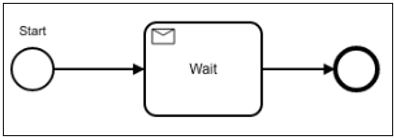
Simple process flow in Straatos as follows:

Start Event:

  • It must have a name. For example, in the above case 'Start'.

Wait:

  • Once a task is formed in the system, we use a 'Message Receive' task called 'Wait' to wait for some input.


Sample Code 1 - Create a new Task in Straatos

In this sample, a webservice is created that adds a new task in the workflow.

Name
Where to look
Description

createTask

Line 1

We must check for which webservice the call is. In this case, we expect the webservice to have a /createTask at the end. This allows us to create multiple webservices.

straatos.addDocument

Line 4

The straatos.addDocument creates the task. The parameters specified are the workflow name (Test QA Workflow) and the Start Event Name (Start). The function returns the Straatos DocumentID.

response.body

Line 9

We return the webservice response with a message and the DocumentID. The default Status is always 200 (unless set differently). The default Content-Type is text/plain. This can be overruled by e.g. response.headers['Content-Type'] = 'application/json';

Sample


Sample Code 2 - Create a new Task in Straatos with Index fields

This sample shows submitting index field values as part of the webservice. The body may be multipart.

Key points:

  • FirstName:

    • Example getting value from multipart body.

  • LastName:

    • Example getting value from header.

  • InvoiceNumber:

    • Example getting value from query parameter.

Sample


Sample Code 3 - Create a new Task with Index fields and JPG Files / Pages

This sample attaches image files uploaded as multipart to a new Straatos Task.

circle-info

If files are uploaded as part of multipart, this works for multipage JPGs where each page is a separate JPG file.

Sample


Sample Code 4 - Forward a Task in the workflow and update field values

Find documents in the 'Wait' step for a workflow and forward them by updating index fields.

Name
Where to look
Description

forward

Line 1

We created a new webservice called 'forward' as this is a completely different action to the create task.

Test QA Workflow

Line 2

We want to find a specific document in the workflow 'Test QA Workflow' in the process step 'Wait'.

InvoiceNumber

Line 2

We want to find a (all) documents where the invoice Number is the same as submitted in the header.

PaymentStatus

Line 6

Here we update the document in the workflow. The 'PaymentStatus' is an index field in the workflow that gets updated and the document gets routed to the next stage.

Sample


Sample Code 5 - Upload a PDF File

This sample handles both PDF (raw body) and JPG (multipart) uploads.


Sample Code 6 - Polling

3rd party application may want to poll Straatos for documents. This example finds documents by index field and returns variables (index fields) for the first match.

circle-info

If you have the exact documentID (for example, when the document was created with the API further up in the sample), then you can use that particular ID directly in the get Variables call.


Sample Code 7 - Usage of getDocumentInfo

The script below uses the getDocumentInfo method on the Adapter and outputs the contents to the console.


Sample Code 8 - Get additional stored documents

The following script gets the merge-pages-pdf additional data (the result of a Merge PDF pages=activity) of a certain document and returns that pdf to the browser.


Sample Code 9 - Uploading a PDF as 'additional data'

This Script does not show the pdf in the browser, but it uploads the pdf as additional data with a different key, in this case, binary-test-pdf.


Sample Code 10 - XML without namespaces


Sample Code 11 - XML with namespaces

This script shows how to create a simple XML document with one namespace with a single prefix used on all elements and attributes.


Sample Code 12 - Securing the interact script

When you create an interact script, it is open to the web and anyone can access it. A webservice key can be used to secure it for server-to-server interaction.

A webservice key cannot be used to secure the interact API when it is called from a website. The following script shows how an existing authenticated session can be used to check the authentication and roles.

This script assumes that the authentication took place outside of the interact API, for example via the MyHome Login. The interact script below could then be called from a Custom UI.

The session ID must be given as part of the header when calling from the custom Ui. In this script, we also want to check if the user has the right to do the action. As a result, if the user has that role, the calling action will be checked. For example, if a user wants to submit a task, we want to see if the user has the role 'New Job' assigned to him.


FAQs

chevron-rightWhat are the usual challenges when two applications try to interact via web services?hashtag

Each application has its own set of web services with its own parameters, headers, body requirements. The challenge is to make them talk to each other.

There are three ways to make that happen:

  • 3rd party application makes changes to their push web service API calls.

  • Straatos makes changes to its API definitions.

  • Use of a 3rd party web service (or Platform) that makes the two web service calls to talk to each other (example: Zapier, Mulesoft).

chevron-rightWhat are the challenges of traditional approaches?hashtag
  • Knowledge & skills to change the API:

    • Changes affect other users of the web service.

    • 3rd party product which can not be changed or requires the vendor to make changes.

    • Effort and cost to make the changes.

  • Changes affecting other users:

    • Duration, cost, and effort to develop a customer-specific web service (days to weeks).

    • Agility to change Webservices.

    • No customer self-service to change the Webservices.

  • 3rd Party Platform (such as Zapier/Mulesoft).

  • Different geolocation:

    • Not the feature set required.

    • Additional subscription/cost.

    • Additional service/company.

  • Dedicated web service.

    • Effort & cost to build an entire/independent web service.

    • Hosting & monitoring of the web service

    • Code maintenance

    • Extensive testing.

chevron-rightWhat incoming web service calls are supported?hashtag
  • The Straatos Interact API supports POST and GET calls.

  • All parameters, header, and body information are passed to the Interact Script and can be used in the script to determine what to do with the incoming call.

chevron-rightCan more than one web service call be defined?hashtag

Yes, there is no limit on the number of different web service calls that can be defined in a single Straatos Interact Script.

Example for 3 web service calls:

  • CreateTask.

  • ForwardTask.

  • RetrieveTaskInfo.

chevron-rightSecurity: how does a web service call get authorised?hashtag

The security can be built into the Straatos Interact Script. Options:

  • No authentication: open web service.

  • Web service Key/API Key: check the key in the script.

  • OAuth2:

    • Use ajax to obtain tokens and validate outside Straatos.

Authentication can be as secure and restrictive as needed.

chevron-rightIs data between web service calls encrypted?hashtag

Yes, all communication uses SSL encryption.

chevron-rightCan payload encryption be used?hashtag

Yes. The Interact Script can decrypt incoming encrypted payloads (if needed) or pass encrypted data through the workflow. Decryption and handling depend on processing needs.

chevron-rightWhat is Organisation ID?hashtag

The Organisation ID is a unique identifier that defines your organization and is used as part of the request URL when consuming the API.

How to find your Organisation ID:

  1. Log in to the CumulusPro Admin Panel with your credentials. The CumulusPro Admin dashboard will appear.

  2. In the dashboard, click Create Organisation.

circle-info

If the organisation is already available, please proceed to step 4.

  1. Select the desired template. and click Next.

    1. The new organisation will appear on the dashboard.

  2. From the dashboard, click the newly created organisation. A new dashboard will appear.

  3. Click the organisation settings to view the organisation details. The organisation Settings page contains the Unique ID and all relevant information about the organization.

Last updated